Monday, 25 September 2023

HTML Content Model

  How to create Forms in HTML..?


What is the Content Model..?

▪    The content model refers to the set of rules that define what type of content each element is allowed to have.


▪    Mostly, this translates into what other elements are allowed to be nested inside which other elements.


HTML content model

▪    Every HTML element has a default display value, depending on what type of element it is.


▪    There are two display values: block and inline.


▪    Modern HTML specification split these two content models into seven models.


Block Elements


▪    Block elements are large building blocks of your Web page.


▪    When displayed, the browser automatically adds a line break before and after the block element, which takes up all available width.


▪    Example: div, form, h1, h2, h3, h4, h5, h6, li, ol, p, pre, table, ul


Try out this example on block elements.

Code:-

Output:-

in the above example, you can see a block-level element always starts on a new line and stretches out to the left and right as far as it can ie, it occupies the whole horizontal space of its parent element & the height is equal to the content’s height. 

Inline Elements


▪    Inline elements are used to mark parts of the contents of elements.

▪    The width of an inline element equals the amount of content.

▪    Example: a, em, img, input, label, span, strong

Try out this example on inline elements.

Code:-

Output:-

In the above example, we have used the <div> tag that always starts in a new line & captures the full width available. We have used the inline element anchor tag <a>that is used to provide a link to a text. The inline element doesn’t start in a new line & captures only the space around the element.

Difference Between Block Elements and Inline Elements


Modern HTML Content Models

▪    Modern HTML specification replaces those two content model definitions with more complex definitions.


▪    The reason it’s still practical to group them into just those two is because they align very well with existing CSS rules.


▪    The seven modern HTML content models are;


▪    Metadata content


▪    Flow content


▪    Sectioning content


▪    Heading content


▪    Phrasing content


▪    Embedded content


▪    Interactive content


Metadata Content

▪    Content that sets up the presentation or behaviour of the rest of the content.


▪    Elements: base, command, link, meta, noscript, style, title.


Flow Content

▪    These are the elements that would be included in the normal flow of the document.


▪    Elements: b, br, button, datalist, details, div, embed, fieldset, figure, footer, form, h1, h2, h3, h4, h5, h6, header, i, iframe, img, input, label, link, math, menu, script, table, textarea, time, ul.


Sectioning Content

▪    Content that defines the scope of headings and footers.


▪    Elements: article, aside, nav, section


Heading Content

▪    Defines the header of a section, which can either be explicitly marked up with sectioning elements or implied by the heading content itself.


▪    Elements: h1, h2, h3, h4, h5, h6, hgroup


Phrasing Content

▪    The text of the document, as well as elements used to mark up the text within paragraph level structures.


▪    Elements: a, area, audio, b, br, button, canvas, cite, code, datalist, embed, i, iframe, img, input, label, link, map, mark, math, noscript, object, output, progress, q, samp, script, select, small, span, strong, sub, sup, svg, time, var, video


Embedded Content

▪    Any content that imports other resources into the document.


▪    Elements: audio, canvas, embed, iframe, img, math, object, svg, video.


Interactive Content

▪    Any content specifically intended for user interaction. 


▪    Elements: a, audio, button, details, embed, iframe, img, input, keygen, label, menu, object, select, textarea, video.


Written by:  W.A. Eranga Dewmini


Forms in HTML

 How to create Forms in HTML..?


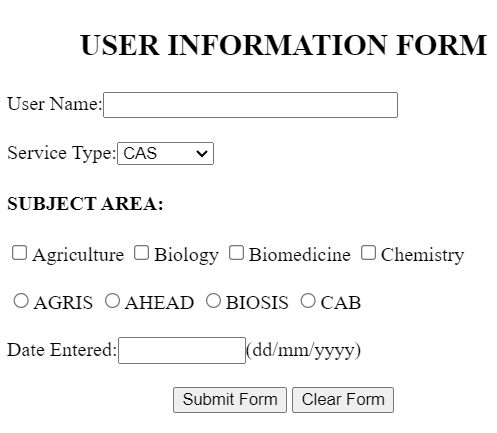
A  HTML form is used to collect user input.

A  HTML form is a section of a document that contains controls such as text, password, checkboxes, radio buttons, submit buttons and menus.

The user input is most often sent to a server for processing.


📌 The <form> Element

▪    The HTML <form> element is used to create an HTML form for user input.

▪    The <form> element is a container for different types of input elements, such as: text fields, checkboxes, radio buttons, submit buttons, etc.


<form>

form elements

</form>


📌 The <input> Element

▪    The HTML <input> element is the most used form element.

▪    An <input> element can be displayed in many ways, depending on the type of attribute.

📌 Text Field
The <input type="text"> defines a single-line input field for text input.

 
📌 The <label> Element
Notice the use of the <label> element in the example above.

The <label> tag defines a label for many form elements.

 
📌 Radio Buttons
The <input type="radio"> defines a radio button.


📌 Checkboxes
The <input type="checkbox"> defines a checkbox.


📌 Submit Button
The <input type="submit"> defines a button for submitting the form data to a form-handler.


Code:-

<HTML> 
<BODY> 
<H1 ALIGN=CENTER><FONT SIZE=+2>USER INFORMATION FORM</FONT></H1> 
<FORM ACTION="/Scripts/simple.pl" METHOD="post" > 
User Name:<INPUT TYPE="text" NAME ="uname" SIZE=30> 
<BR> <BR> 
Service Type:<SELECT NAME="service"><OPTION>CAS<OPTION>CDRS 
<OPTION>COPSAT<OPTION>DDS<OPTION>FDSS<OPTION>ISS 
<OPTION>OSS<OPTION>SAS<OPTION>DA 
</SELECT> 
<BR> 
<H4><NOBR>SUBJECT AREA:</H4> 
<INPUT TYPE="checkbox" NAME="agriculture" >Agriculture 
<INPUT TYPE="checkbox" NAME="biology" >Biology 
<INPUT TYPE="checkbox" NAME="biomedicine" >Biomedicine 
<INPUT TYPE="checkbox" NAME="chemistry" >Chemistry 
<BR> 
<BR> 
<INPUT TYPE="radio" NAME="database">AGRIS 
<INPUT TYPE="radio" NAME="database">AHEAD 
<INPUT TYPE="radio" NAME="database">BIOSIS 
<INPUT TYPE="radio" NAME="database">CAB 
<BR> 
<BR> 
Date Entered:<INPUT TYPE="text" NAME ="entrydate" SIZE=10">(dd/mm/yyyy) 
<BR> 
<BR> 
<CENTER> 
<INPUT TYPE= "submit" VALUE="Submit Form"> 
<INPUT TYPE= "reset" VALUE="Clear Form"> 
<CENTER> 
</FORM> 
</BODY> 
</HTML>

Output:-


Written by:  W.A. Eranga Dewmini

Tables in HTML

 How to create Tables in HTML..?


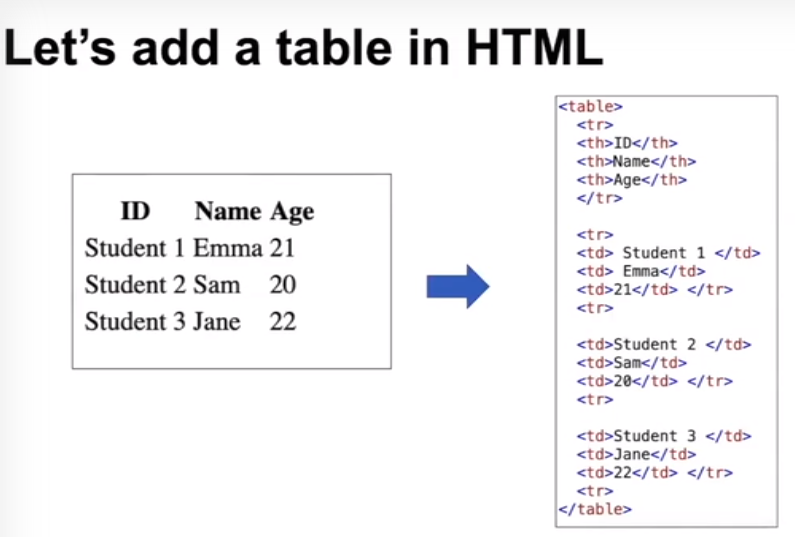
Tables help us to organize data that is too detailed or complicated to be described using text. This helps the reader to get a clear understanding of the presented data.

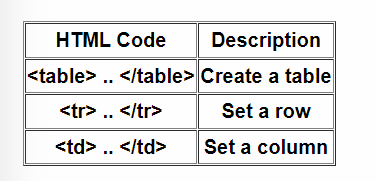
A table in HTML consists of three main parts.

📌 Table Rows

      Represent a single row of data in a table.

      Each table row starts with a <tr> and ends with a </tr> tag.

📌 Table Data

     Use to specify a cell in the table that contains actual data.

     Each table row starts with a <td> and ends with a </td> tag.

In the following example, let's see how to use the <tr> tag and the <td> tag.

Code:-

<!DOCTYPE html>
<html>
<style>
table, th, td {
  border:1px solid black;
}
</style>
<body>

<h2>TR elements are used to define table rows</h2>

<table style="width:50%">
  <tr>
    <td>Sam</td>
    <td>Jan</td>
    <td>Lina</td>
  </tr>
  <tr>
    <td>21</td>
    <td>22</td>
    <td>24</td>
  </tr>
</table>

</body>
</html>


Output:-

📌 Table Headers

Use to specify headings of the table data.

Each table row starts with a <th> and ends with a </th> tag.

Add the following code inside an HTML page and check the output.

Now let's create a simple table using the <tr> tag, <td> tag and the <th> tag, 


Code:-

<!DOCTYPE html>
<html>
<style>
table, th, td {
  border:1px solid black;
}
</style>
<body>

<h2>Let's create a basic HTML table</h2>

<table style="width:50%">
  <tr>
    <th>Name</th>
    <th>Age</th>
  </tr>
  <tr>
    <td>Alex</td>
    <td>23</td>
  </tr>
  <tr>
    <td>Gina</td>
    <td>21</td>
  </tr>
   <tr>
    <td>Sam</td>
    <td>24</td>
  </tr>
</table>

</body>
</html>

Output:-


Written by:  W.A. Eranga Dewmini


Images in HTML


How to add an Image in HTML..?

How to add an image in HTML code..?

  • <img>  Tag

Output:-

Graduated Girl


HTML Code:-

<!DOCTYPE html>
<html>
<body>

<h2>Graduated Girl</h2>

<img src="https://www.heirloomportraits.ca/usercontent/services/graduation-portraits/grad7.jpg" alt="Graduated Girl in UOW">
  
</body>
</html>

  • alt  

<alt> can be used to display text when an image is not visible.


How to set an image height & width in HTML..?

  • width & height

Output:-

Graduated Girl


HTML Code:-

<!DOCTYPE html>
<html>
<body>

<h2>Graduated Girl</h2>

<img src="https://www.heirloomportraits.ca/usercontent/services/graduation-portraits/grad7.jpg" alt="Graduated Girl in UOW" width="600" height="300">
  
</body>
</html>


Written by:  W.A. Eranga Dewmini

Lists in HTML

 How to create lists in HTML..?


What is a List..?

HTML lists allow us to group a set of related items in lists.

Lists in a web application:

  • Unorderd List
  • Orderd List
  • Description List


  • Unorderd List
🔆 A list of related items not in a particular order...

Output:-

Vegetable List

  • Carrot
  • Leaks
  • Pumpkin
HTML Code:-

<!DOCTYPE html>
<html>
<body>

<h2>Vegetable List</h2>

<ul>
  <li>Carrot</li>
  <li>Leaks</li>
  <li>Pumpkin</li>
</ul>  

</body>
</html>


  • Orderd List
🔆 A list of related items, in a specific order... 

Output:-

Fruits List

  1. Apple
  2. Strawberry
  3. Grapes

HTML Code:-

<!DOCTYPE html>
<html>
<body>

<h2>Fruits List</h2>

<ol>
  <li>Apple</li>
  <li>Strawberry</li>
  <li>Grapes</li>
</ol>  

</body>
</html>


  • Description List

🔆 A list of items and their descriptions...

Output:-

Students

Eranga :
   She did her A/L's in Engineering Technology Stream

Minuri :
   She did her A/L's in Art Stream

Rashodha :
   She did her A/L's in Art Stream

HTML Code:-

<!DOCTYPE html>
<html>
<body>

<h2>Students</h2>

<dl>
  <dt>Eranga :</dt>
     <dd>She did her A/L's in Engineering Technology Stream</dd>
</dl>

<dl>
  <dt>Minuri :</dt>
     <dd>She did her A/L's in Art Stream</dd>
</dl>

<dl>
  <dt>Rashodha :</dt>
     <dd>She did her A/L's in Art Stream</dd>
</dl>  

</body>
</html>


Written by:  W.A. Eranga Dewmini
Java Script Learning

 Introduction to JavaScript JavaScript is the programming language used by front-end web developers to instruct the browser to add behaviors...